

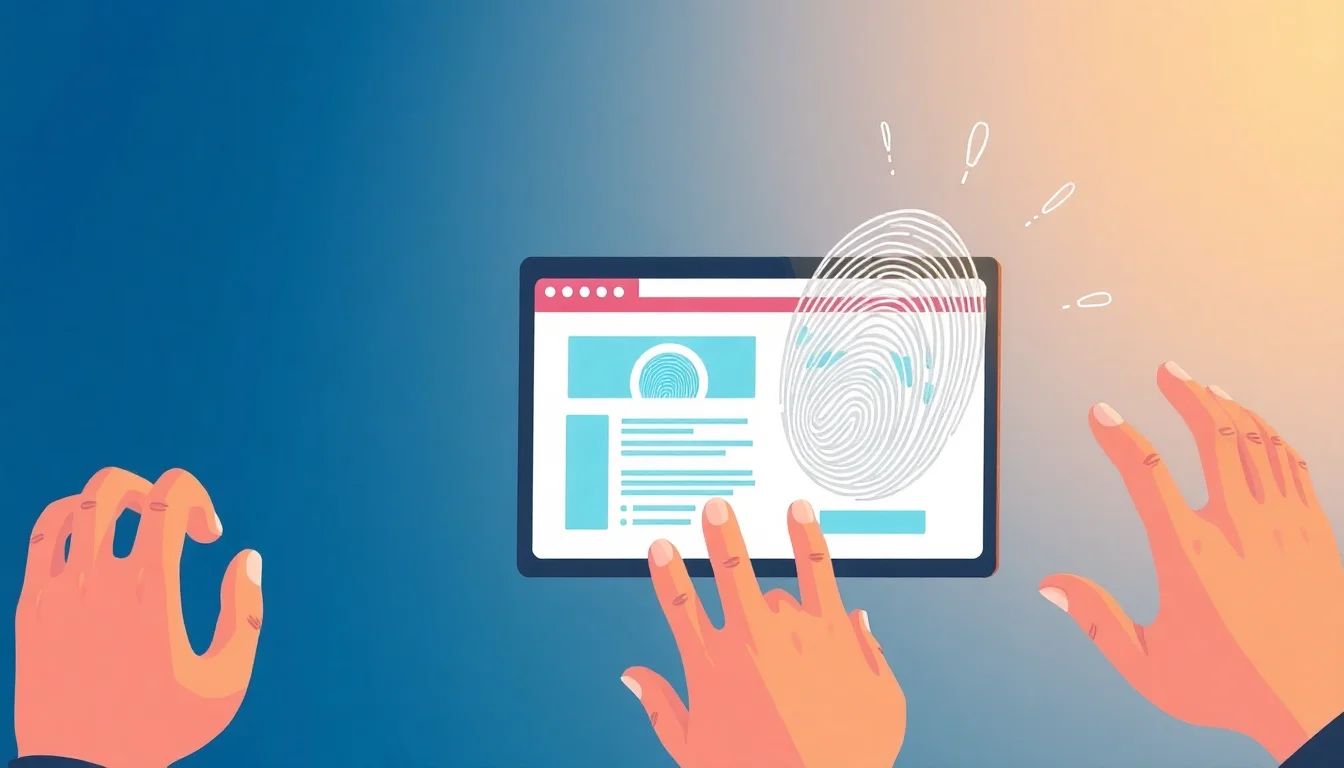
You cleared your cookies. You use private mode. The ads still follow you like a shadow.
That’s because websites aren’t just tracking cookies. They’re building a silent profile of your device — your screen resolution, installed fonts, timezone, even your graphics card model. That’s browser fingerprinting.
And the worst part? You can’t just “delete” it.
So here’s a no-fluff, beginner-friendly checklist for browser fingerprinting how to avoid without needing a computer science degree.
Why This Matters for You
You might think “I’m not doing anything illegal, so who cares?” Here’s why you should:
- Freelancers & remote workers: One device, two client Slack accounts. Fingerprinting can link them, and you get banned.
- Online sellers: Etsy or eBay sees you running multiple shops from the same browser. Your accounts get suspended.
- Regular users: You search for a flight once. The price goes up. That’s not magic, that’s fingerprinting combined with dynamic pricing.
Fingerprinting doesn’t just follow you. It identifies you.
Step-by-Step Checklist: How to Avoid Browser Fingerprinting
1. Switch to a Privacy-Focused Browser
Your default browser (Chrome, Edge, Safari) is built for data collection, not privacy. Use a browser that actively fights fingerprinting.
Look for features like:
– Built-in fingerprinting protection
– Automatic canvas and font blocking
– Tor-like functionality (for high-risk situations)
A privacy browser like Firefox (with strict mode) or Brave is a good start. For more control, consider a secure browser designed for anonymity.
2. Disable JavaScript When You Don’t Need It
JavaScript is the engine behind most fingerprinting. Without it, scripts can’t read your screen size, installed fonts, or battery status.
You don’t need to disable it everywhere. Just use an extension like NoScript or uBlock Origin to block scripts on suspicious or unknown sites. Keep it enabled for sites you trust.
3. Use a Consistent Anti-Detect Browser for Multiple Accounts
If you manage multiple logins (work, side gigs, personal), don’t use the same browser profile for all.
The most reliable way to avoid browser fingerprinting is to use an anti-detect browser. This tool lets you create separate browser profiles, each with a unique fingerprint — different screen resolution, different fonts, different timezone, everything.
One profile for your main job. A second for your freelance work. A third for personal browsing. They never cross paths.
4. Test Your Fingerprint Before Trusting It
Don’t assume your setup works. Test it.
Visit amiunique.org or coverourtracks.eff.org (from the EFF). These sites show you exactly what your browser is leaking. If you see unique identifiers like “hash: 98.7% unique among 200,000 samples,” you still have work to do.
5. Avoid Browser Extensions That Share Data
Extensions are a weak point. Many read your browsing history, modify pages, and leak data.
Stick to minimal, open-source extensions. Remove anything you don’t actively use. Every extra extension makes your fingerprint more unique.
6. Use a VPN That Doesn’t Leak WebRTC
A VPN hides your IP, but if it leaks your WebRTC address, you’re still exposed. Choose a VPN with built-in WebRTC leak protection and a kill switch.
Test for leaks at ipleak.net before relying on it.
Common Mistakes Beginners Make
- Thinking private mode is enough: Incognito mode only hides history. It doesn’t change your fingerprint.
- Using a VPN alone: A VPN changes your IP, but your browser still shares your device specs. You’re still trackable.
- Installing 10 anti-tracking extensions: More extensions = more unique fingerprint. Keep it lean.
- Not testing after setting up: You might think you’re invisible, but a quick test can show you’re 98% unique.
Mini Scenario: The Remote Worker Who Couldn’t Log into Two Client Accounts
Maria works as a VA for two different agencies. Both use Slack and Trello. She logged into Client A’s account on her Chrome profile. Then she logged into Client B’s account on a different Chrome window. Within a week, both accounts were flagged for “suspicious activity.”
Why? Chrome shared the same fingerprint across both windows.
What Maria did instead: She used an anti-detect browser for multiple accounts and created two completely separate profiles. Each profile had its own fingerprint, cookies, and IP. No more flags. No more account suspensions.
FAQ
Q: What should I check first when comparing browser fingerprinting how to avoid?
A: Start with the real use case, pricing, setup difficulty, limits, support quality, and whether the option matches your workflow instead of choosing only by brand name.
Q: Is browser fingerprinting how to avoid enough on its own?
A: Usually no. It should be evaluated together with your process, budget, risk level, and the other tools or accounts involved in the workflow.
Q: How do I avoid choosing the wrong option?
A: Use a short checklist, test on a small use case first, read the refund policy, and avoid tools or services that make unrealistic promises.

