

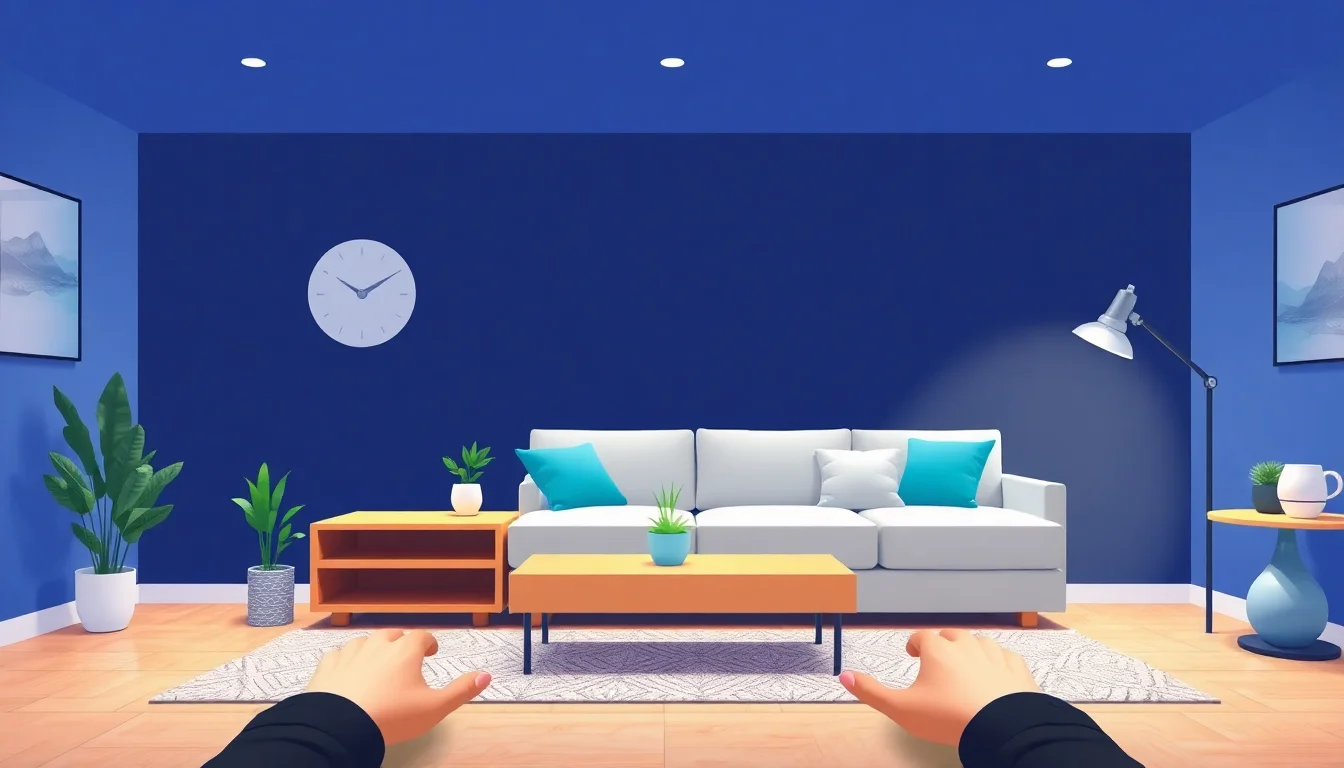
You have a room. You have a vague idea. You have a budget. But every time you open Pinterest, you fall into a rabbit hole of Scandinavian kitchens and bohemian bathrooms that have nothing to do with your ugly beige rental.
AI tools for interior design can turn that vague idea into a visual plan in minutes. Not a mood board. Not a filter. An actual picture of your room, with different furniture, colors, and layouts.
If you’re just starting out, it’s worth trying a free version of a AI tools for interior design platform before committing to a subscription. This lets you test the workflow with your own room photo and see if the results match your expectations. For more complex projects, consider a AI workflow that includes manual editing features for precise adjustments. Our recommended AI tool is a great starting point for beginners who want reliable results without a steep learning curve.
But most beginners pick the wrong tool first. They sign up for a 3D modeling app when all they need is a photo uploader. Or they try a text-only generator that produces a room that doesn’t even have a window where your window is.
This checklist stops that.
Why This Matters: Two Hours vs. Two Weeks
Before AI, redesigning a room meant one of two things:
– Hiring an interior designer (expensive, slow).
– Buying furniture and hoping it fits (expensive, returns).
AI tools for interior design let you see exactly how a new sofa looks in your actual living room before you click “buy.” That’s not a nice-to-have. That’s how you stop wasting money on the wrong rug for the third time.
The “Don’t Design Your Room Twice” Checklist
This is your step-by-step path from blank wall to a render you can actually use.
Step 1: Take one good photo of your room
– Stand in the doorway or corner.
– Use natural light. No filters, no wide-angle lens that bends the walls.
– The tool needs to see the real dimensions and layout.
Step 2: Decide what you want to change (and what you won’t)
– Are you keeping the floor? Yes/no.
– Are you keeping the window treatments? Yes/no.
– Do you have a budget cap per piece?
– Write these down before you open any app.
Step 3: Pick the right tool for your goal
| If you want to… | Use a tool that… | Example category |
|---|---|---|
| See new furniture in your actual room | Does “virtual staging” or “room redraw” | Photo-based AI |
| Generate a room from scratch | Accepts a text prompt only | Text-to-image AI |
| Change colors or materials on existing furniture | Has an “erase and replace” feature | Object swapping AI |
| Get a floor plan with furniture placement | Uses a blueprint or photo upload + layout AI | Layout AI |
Step 4: Upload your photo (not your room dimensions)
– Most beginner-friendly AI tools work from one photo.
– Do not measure your walls unless the tool explicitly asks for it.
– Let the AI do the spatial guesswork first. You correct it later.
Step 5: Apply one style change at a time
– Start with the wall color. See the result.
– Then change the sofa. See the result.
– Do not change everything at once. You lose track of what works.
Step 6: Save your favorite render and check the price
– Many tools let you generate unlimited rooms for a monthly fee.
– If you only need one room, look for a pay-per-render option.
– Compare the render to your real room. If the AI moved the window, try a different tool.
Common Mistakes Beginners Make
Choosing a text-only generator for a real room.
“Mid-century modern living room” sounds nice. But the AI doesn’t know your window is on the west wall. The result will be a generic room, not your room.
Using a tool that doesn’t let you keep the floor.
You upload your photo. The AI replaces your laminate floor with marble. You hate it. Now you can’t see the original. Always check if the tool has a “preserve” option for elements you want to keep.
Generating 50 versions and then doing nothing.
You spend an hour generating options. You save 12 favorites. Then you close the app and forget. Set a timer. Generate for 20 minutes, pick one, and decide your next step.
Real Scenario: From Empty Bedroom to a Cozy Plan in 20 Minutes
Maria has a 10×12 bedroom with beige walls, gray carpet, and a window on the north wall. She wants a warm, dark-toned room with a queen bed, a reading chair, and no renovation.
She takes one photo from the doorway. She uploads it to a photo-based AI tool. She picks “preserve carpet” and “preserve window position.”
First attempt: she types “dark green walls, walnut bed frame, cream linen curtains.” The result is okay but the bed is too small.
Second attempt: she types “dark teal walls, walnut queen bed with upholstered headboard, cream curtains, a tan leather chair.” The AI places the chair exactly where her real window is. She adjusts the prompt: “chair against the wall opposite the window.”
Third attempt: it works. She saves the render. She now has a shopping list: dark teal paint, a walnut headboard, cream curtains, and one tan leather chair.
Total time: 18 minutes. No Pinterest scrolling. No measuring. No returns.
Final Practical Takeaway
Do not open an AI interior design tool without your phone photo ready and a clear answer to “what stays?”. The best AI tools for interior design are the ones that let you keep your actual room’s structure and only change the things you want to change.
One photo. One style change at a time. One saved render. That’s your project plan.
FAQ
Q: Do I need to know design terms like “mid-century modern” to use these tools?
A: No. Describe what you like in plain words: “dark green wall, white sofa, wooden floor.” The AI will adapt. Style labels are optional.
Q: Can I use AI interior design tools on a phone?
A: Yes, most work in a browser on any device. Some have dedicated mobile apps. Stick to browser-based tools for your first try.
Q: Will the AI correctly place furniture in my real room?
A: Usually yes for simple layouts. If your room has angled walls, bay windows, or built-in shelves, check the render carefully. Adjust your prompt or use a tool with manual editing.
Q: Are there free AI interior design tools?
A: Yes, but free tiers often add watermarks or limit renders. Use a free tool to test the workflow, then pay for one render if the result is good.

